TP-Link EAP653 Omada Wi-Fi 6 - single SSID and seamless roaming
One of the most noticeable upgrades to the home network alongside the YouFibre installation was switching from a single consumer router with Wi-Fi to a proper multi-AP setup using TP-Link's Omada EAP653 access points. The difference in coverage and roaming behaviour was immediate and substantial.
This post covers how I have them configured: a single SSID across the whole house, fast handoff between access points as you move room to room, and central management through the Omada controller. No more manually switching between networks or having a phone stubbornly hold onto a weak AP signal from two floors away.
Why multiple access points instead of a mesh system?
Consumer mesh systems are convenient, but they typically use a wireless backhaul between nodes, which eats into the available bandwidth and introduces additional latency. In a house already wired with Cat6A Ethernet to every room, using a wired backhaul is the obvious choice. Each EAP653 connects via a dedicated Ethernet run back to the core switch - clean, fast, and with no wireless backhaul overhead.
The EAP653 is a ceiling-mount Wi-Fi 6 (802.11ax) access point with a 2.5GbE uplink port. That wired uplink matters at YouFibre speeds - a standard Gigabit port would be a bottleneck on a 2 Gbps connection. With 2.5GbE, the AP itself is no longer the limiting factor.
What the Omada controller does
The Omada controller is the central management layer for all the access points. Without it, each EAP operates independently and you would need to configure them individually. With the controller, you define your SSIDs, security settings, and roaming parameters once, and they are pushed to every AP automatically.
I run the Omada controller as a Docker container on a home server, which means it's always available without needing a dedicated Omada hardware controller. TP-Link also offer a cloud-based option and a standalone hardware controller, but the software controller works well if you have somewhere suitable to run it.
Single SSID across all access points
The starting point for seamless roaming is making sure every access point broadcasts the exact same SSID and uses the same security credentials (WPA2/WPA3, same passphrase). In the Omada controller, this is done through a Wireless Network profile:
- In the Omada controller, go to Settings → Wireless Networks
- Create a new wireless network with your chosen SSID name
- Set the security mode (WPA2/WPA3 Personal recommended) and passphrase
- Apply the network to all access points in the site
Each AP will broadcast the same SSID. From a device's perspective, it looks like one single Wi-Fi network wherever it is in the house.
Fast roaming with 802.11r
Having the same SSID on every AP is necessary but not sufficient for seamless roaming. Without fast roaming, a device switching from one AP to another has to complete a full re-authentication, which takes long enough to drop a video call or interrupt a Teams session mid-sentence.
The 802.11r amendment (Fast BSS Transition, or FT) solves this by pre-caching authentication credentials across APs so that the handoff completes in milliseconds rather than seconds. In Omada, it is enabled per wireless network:
- Open the wireless network you created above
- Under Advanced Settings, enable Fast Roaming
- Save and apply
Most modern devices (phones, laptops, tablets) support 802.11r. Older devices that do not support it will still connect normally; they just won't get the faster handoff. In practice, everything in a typical household handles it fine.
Band steering
The EAP653 is a dual-band AP, broadcasting on both 2.4 GHz and 5 GHz. For seamless roaming and best performance, you want capable devices to use 5 GHz where signal permits, and fall back to 2.4 GHz only when they're far enough away from an AP that 5 GHz isn't usable.
Omada's band steering feature nudges capable dual-band clients towards the 5 GHz band. Enable it in Settings → Wireless Networks → [your network] → Advanced Settings → Band Steering. Leave the default threshold settings unless you have a specific reason to change them.
It's worth noting that band steering and fast roaming work at different layers and complement each other - band steering decides which frequency band a device uses on a given AP, while fast roaming handles the handoff when a device moves to a different AP entirely.
Beacon interval and DTIM period
The default Beacon Interval (100ms) and DTIM Period (1) work well for most households. If you have battery-sensitive IoT devices or mobile phones that you want to sleep more efficiently, you can increase the DTIM period to 3, which allows devices to sleep longer between checking for buffered frames. For a home network with a mix of devices, the defaults are fine.
Minimum RSSI (client signal threshold)
One of the most practically useful settings in Omada is the minimum RSSI (Received Signal Strength Indicator) threshold. By default, an AP will hold onto a connected client even when the signal is very weak, because it's still technically able to serve the connection - just poorly.
Setting a minimum RSSI tells the AP to refuse connections from clients whose signal falls below a certain level, which forces those clients to roam to a closer AP that can serve them properly.
In Settings → Wireless Networks → [your network] → Advanced Settings, enable BSS Transition and set a minimum RSSI value. A value around −75 dBm is a reasonable starting point for a house with good AP placement. If a device stubbornly holds onto a weak AP in a specific spot, lower the threshold slightly (to −70 dBm) to force an earlier handoff.
This, combined with 802.11r, is what makes the roaming feel genuinely seamless rather than just functional.
AP placement
For a multi-floor house, I have one EAP653 per floor, ceiling-mounted near the centre of each level to maximise coverage. Ceiling mounting is intentional - the EAP653's antenna pattern is designed for ceiling installation and radiates outward and downward rather than in a sphere from a wall-mounted position.
The goal is overlapping coverage without excessive overlap. You want a device mid-staircase to have a usable signal from at least two APs, so it has somewhere to roam to. You do not want so much overlap that devices constantly receive competing signals of similar strength and can't decide which AP to use. In practice, one AP per floor in most UK houses achieves this balance well.
IoT separation with a guest or VLAN network
While not strictly related to roaming, it's worth mentioning that Omada makes it straightforward to create a second SSID mapped to a separate VLAN for IoT devices. Smart plugs, bulbs, and similar devices often have weaker security than laptops and phones - keeping them on a separate network segment limits what they can reach if they're ever compromised.
The process is the same as creating the main wireless network: define a new SSID, assign it to a VLAN, and apply it to all APs. On the OPNsense side, create a corresponding VLAN interface with appropriate firewall rules to restrict access.
The result
With this configuration in place, moving through the house with a phone or laptop feels exactly as it should: the Wi-Fi connection stays up, video calls don't drop, and there's no need to manually switch networks or nudge the device to reconnect. The handoff between APs is fast enough that most devices don't register it as a disconnect at all.
Combined with the YouFibre 2 Gbps connection upstream, this setup delivers speeds that genuinely saturate Wi-Fi 6 in normal use. The speed test below was run on a phone connected over Wi-Fi to an EAP653 - no Ethernet involved.
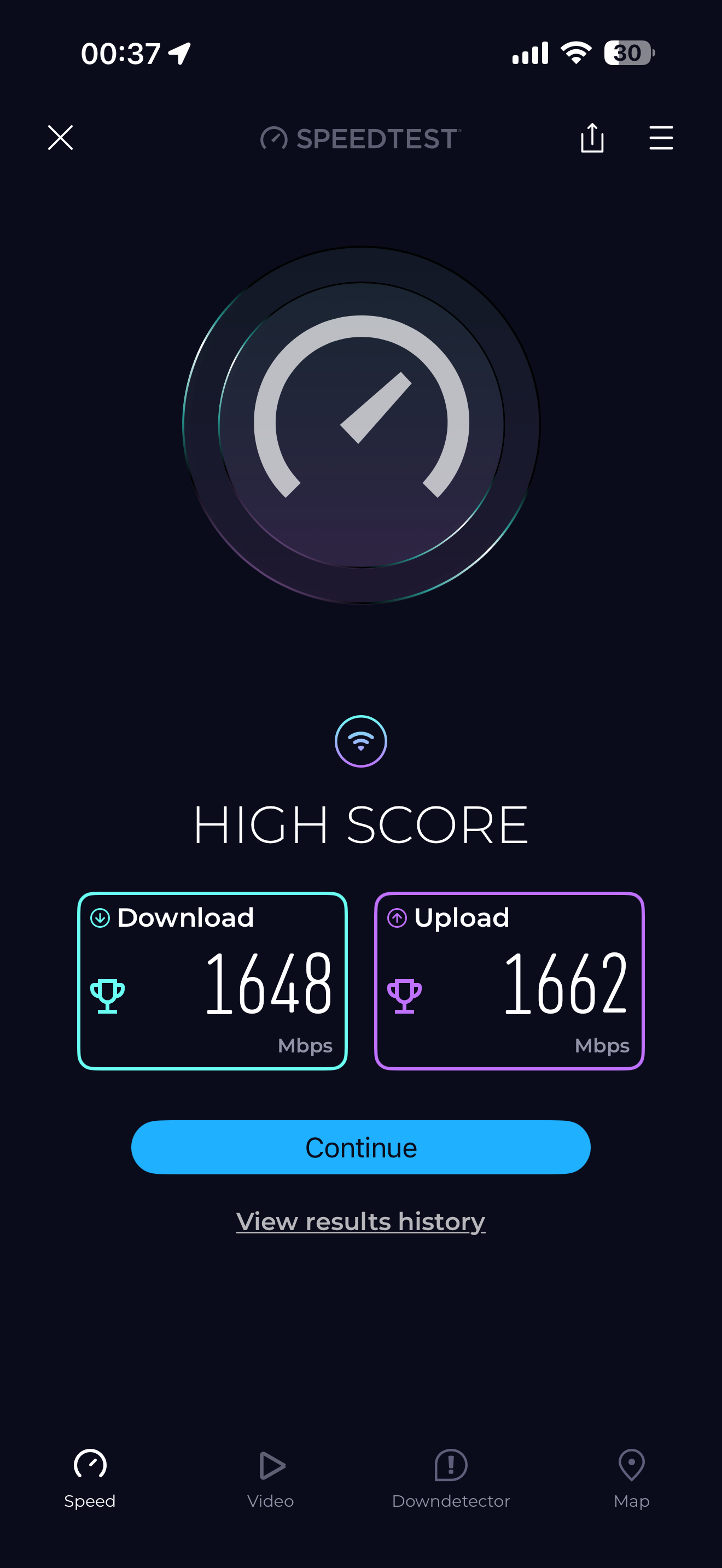
1648 Mbps down, 1662 Mbps up - tested on a phone over Wi-Fi 6 via a ceiling-mounted EAP653. Both figures marked as personal bests by the Speedtest app.
The upload figure actually exceeds the download here, which reflects how well Wi-Fi 6 handles symmetrical loads - a direct benefit of the YouFibre connection's symmetrical speeds flowing through to wireless clients. For most devices in daily use, Wi-Fi 6 is no longer the bottleneck.
The EAP653s themselves have been running without requiring any attention since installation. The Omada controller reports uptime, client counts, and any rogue AP detections, but there has been nothing to act on. It's the kind of infrastructure that disappears into the background, which is exactly what you want.
If you're not yet on YouFibre and this has been useful, you can use my referral code KCR5KH when you sign up. Both of us may receive a reward once your installation is complete.
Check Availability at YouFibre